
Layer styles
Non-destructive effects — drop shadows, strokes, glows, bevels, overlays — plus Blending Options and Blend If, in a dialog that mirrors Photoshop's.
Layer styles attach live, non-destructive effects to a layer — a drop shadow, a stroke, a glow — that update as the layer changes and travel with it into PSD files.
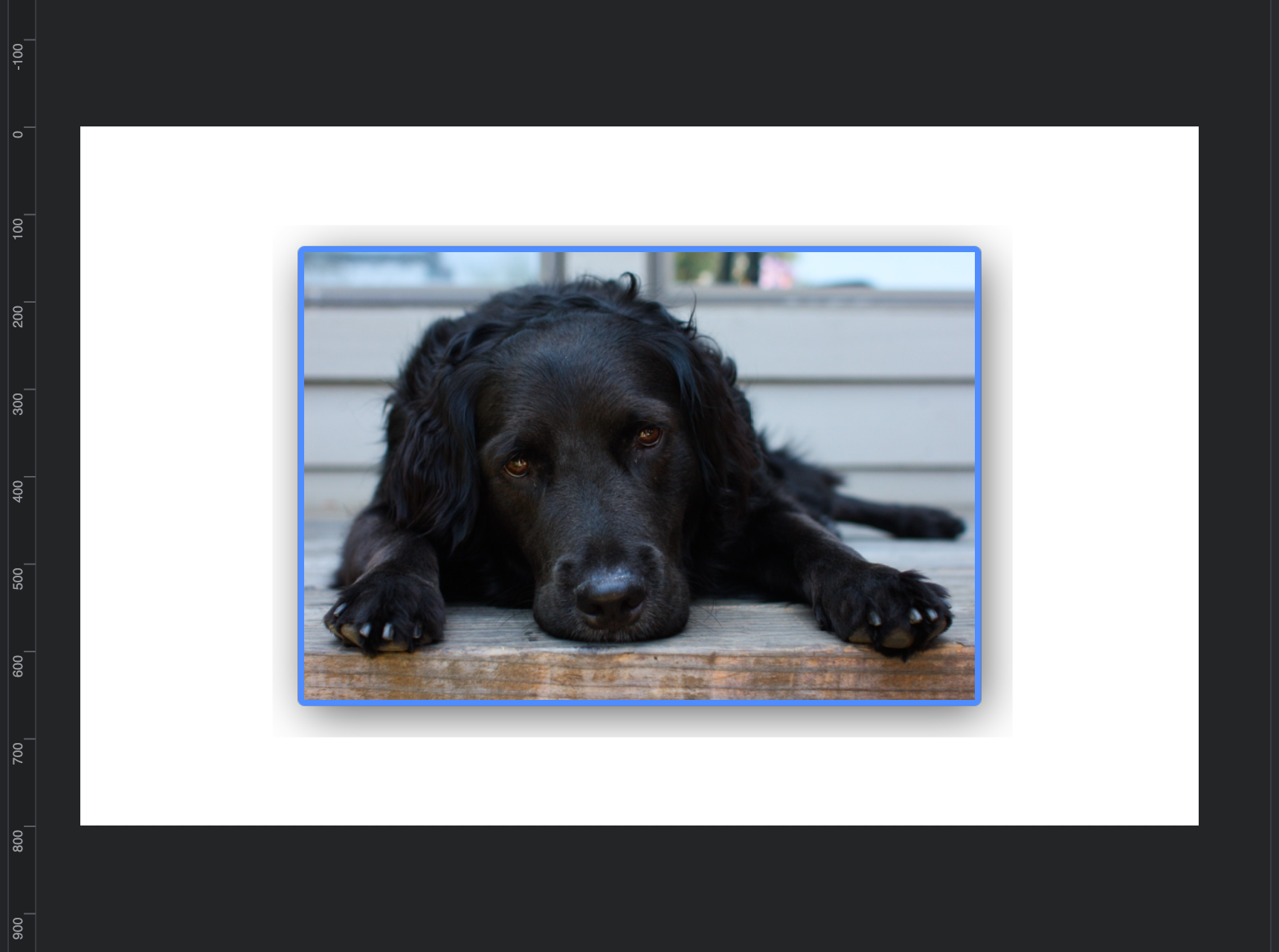
The photo above has two effects attached: a soft Drop Shadow and a blue outside Stroke. Move or repaint the layer and both follow — nothing is baked into the pixels until you flatten or export.
Opening the dialog
Three ways in:
Layer ▸ Layer Style ▸ Layer Style…from the menu.- Double-click a layer row in the Layers panel (or its
fxbadge once it has effects). - Right-click a layer and choose Blending Options from the context menu.
The dialog mirrors Photoshop's layout: an effects list on the left, the selected effect's controls in the middle, and a live preview on the canvas the whole time. Cancel rolls everything back; OK commits the whole session as a single undo step.
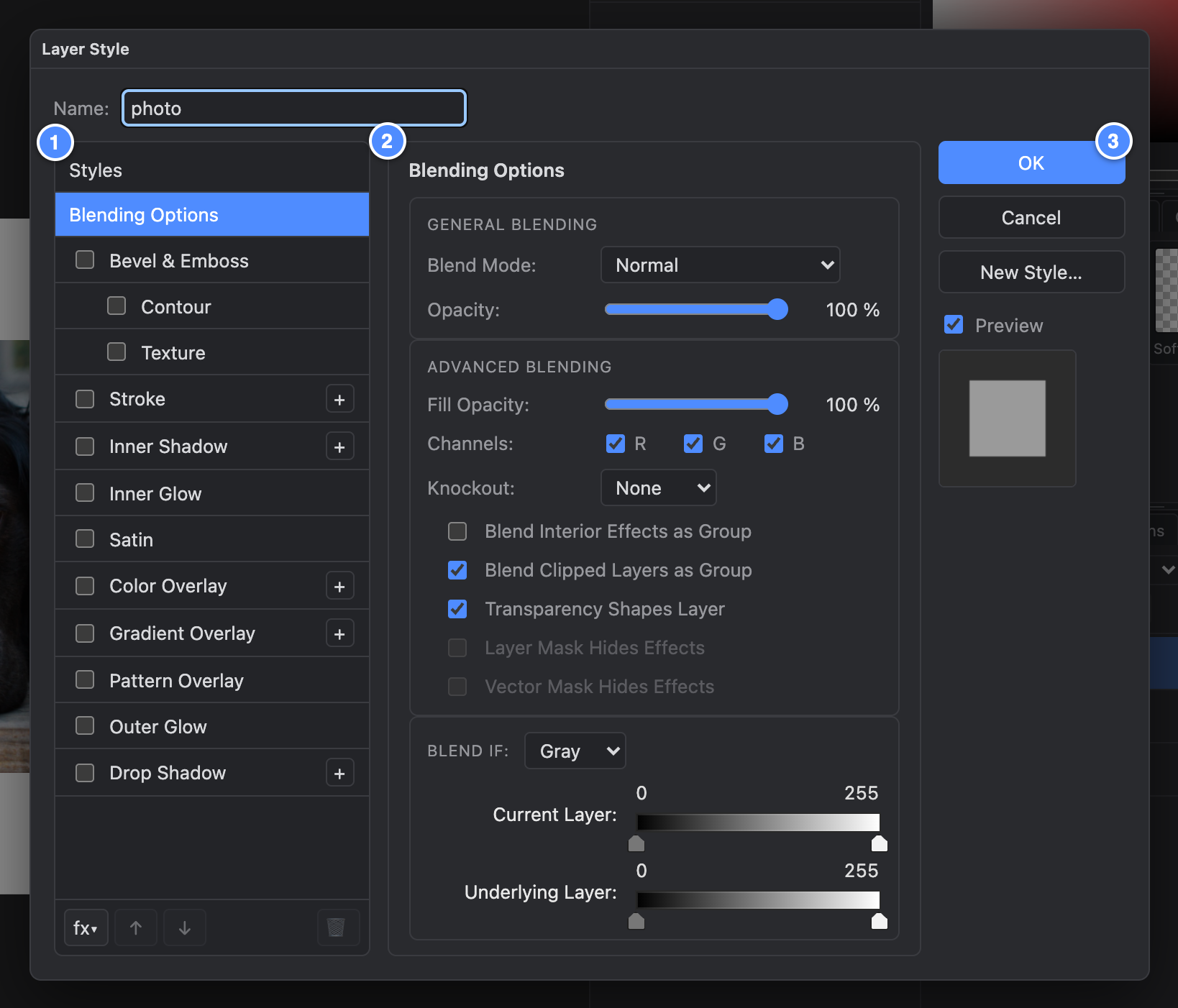
- Effects list — tick a checkbox to enable an effect, click its name to edit it.
+adds another instance of a multi-instance effect; thefx▾bar below manages and reorders them. - Controls for the selected page — here Blending Options, with General and Advanced blending plus the Blend If sliders.
- OK, Cancel, New Style and Preview — Preview paints changes live on the canvas; OK commits the whole session as one undo step.
The effects
In list order:
- Bevel & Emboss — raised or sunken edges, with Contour and Texture sub-pages for shaping the profile.
- Stroke — outline the layer's content, inside/outside/center, with color, gradient or pattern fill.
- Inner Shadow — shading inside the edges.
- Inner Glow and Outer Glow — soft light emanating inward or outward.
- Satin — the classic sheen across the interior.
- Color Overlay, Gradient Overlay, Pattern Overlay — repaint the layer's fill without touching its pixels.
- Drop Shadow — the classic, with angle, distance, spread and size.
Like modern Photoshop, several effects are multi-instance: you can stack more than one Drop Shadow, Inner Shadow, Stroke, Color Overlay or Gradient Overlay on the same layer using the + button next to the effect's name.
Shadow angles can follow Global Light (Layer ▸ Layer Style ▸ Global Light…) so every layer's lighting agrees, and Scale Effects… resizes all of a layer's effects together — handy after transforming.
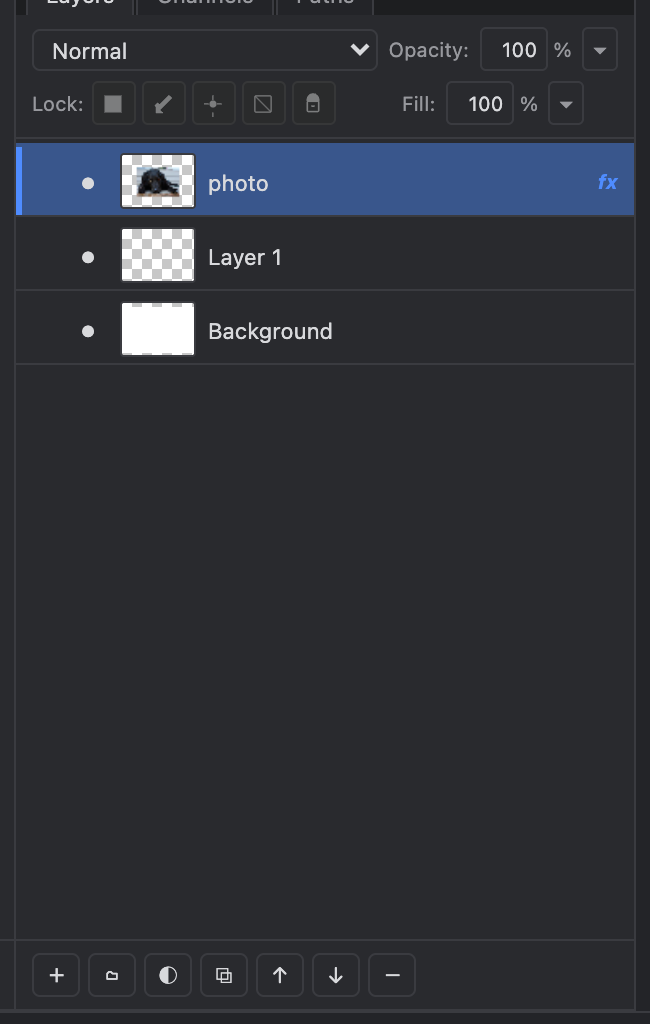
In the Layers panel, styled layers show an fx badge; effects can be expanded, toggled, and copied between layers from the Layer Style menu.
Styles presets
The Styles page of the dialog (and the Styles panel) applies a whole effect stack in one click. Applying a preset replaces the layer's current effects; you can then open any effect and tweak it.
Blending Options and Blend If
The Blending Options page holds the layer's advanced compositing controls:
- General blending — blend mode and opacity, same as the Layers panel.
- Fill opacity — fades the layer's own pixels while effects stay at full strength.
- Channel mask — restrict blending to the R, G or B channel.
- Knockout — let a layer punch through the ones beneath it.
- Blend If — the underrated star. Two slider pairs, This Layer and Underlying Layer, hide or reveal pixels by brightness (per channel or composite). Drag a black slider right to drop the layer's shadows out; drag the white slider left to let the layer only cover the underlying image's highlights. Alt/Option-drag splits a slider handle to feather the transition instead of getting a hard cutoff — the trick behind fast sky replacements and grunge-texture blending.

PSD round-trips
Layer styles are written to and read from PSD files, so a document styled here opens with its effects intact in Photoshop and vice versa. A few edge cases are simplified — see PSD import & export for the honest list.
Last updated