
Use PhotoFresco with AI agents
Let Claude Code, Codex, Gemini CLI or another MCP client edit images in a PhotoFresco window you approve — install, the connection code, permissions and credit budgets, pausing and stopping, and what is sent where.
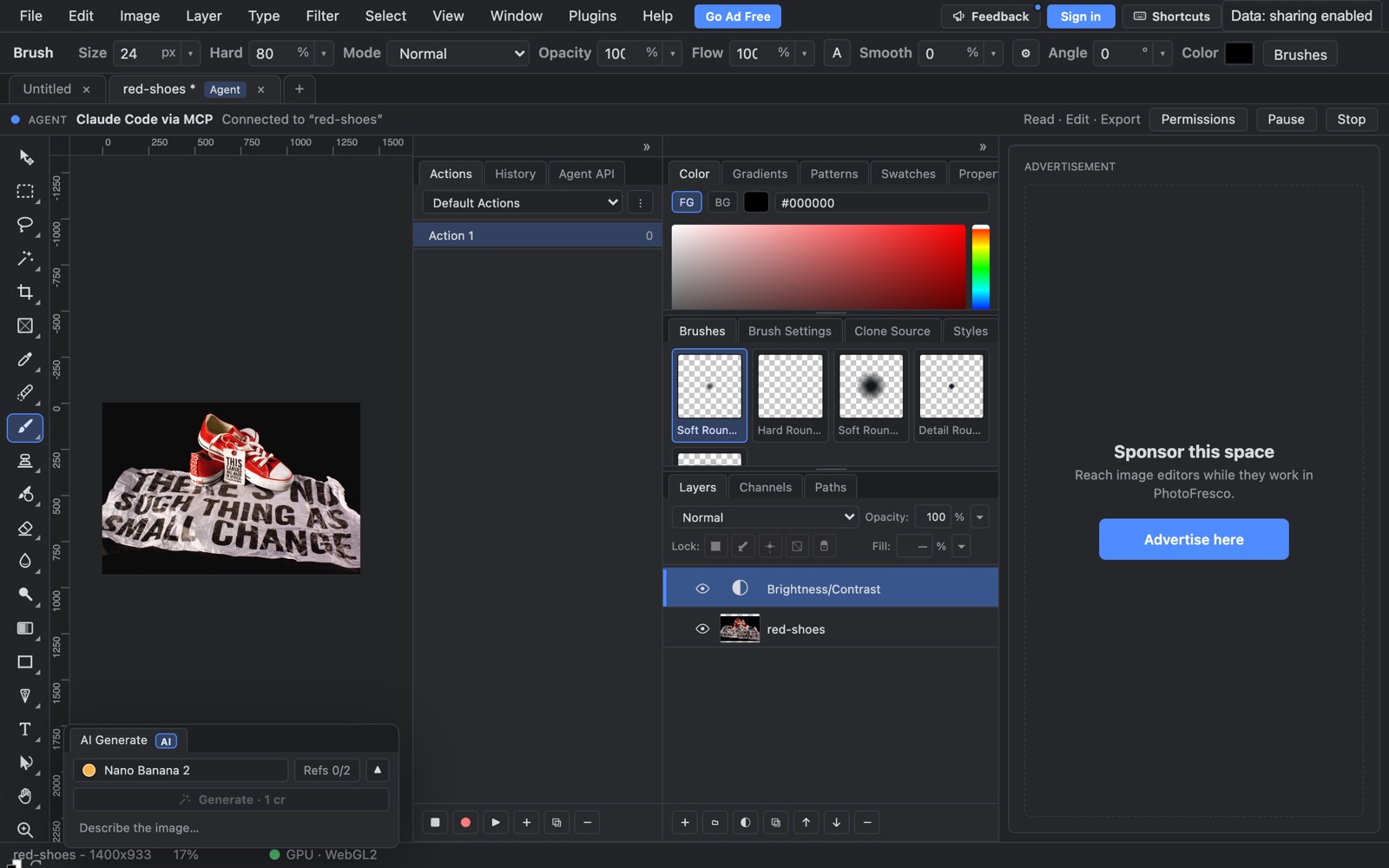
An AI agent on your computer, such as Claude Code, Codex or Gemini CLI, can edit images in PhotoFresco for you. It works in a normal PhotoFresco window that you can watch: layers, masks, adjustments, selections, previews and exports, with every edit in the History panel where you can undo it like your own.
You stay in charge. Nothing connects until you check a connection code and click Allow. A new agent session starts with no permissions, you choose what the agent may do, and you can pause or stop it at any time.
How it works
The agent talks to the PhotoFresco local connector, a small open-source program on your computer. The connector opens photofresco.com in its own browser window and passes the agent's requests to the editor in that window. The editor checks your permissions before it carries out each request. Agents reach the connector through an MCP server (one tool per editor operation) or through the photofresco command line.
The connector, MCP server, command line and agent skill are MIT-licensed and live at github.com/photofresco/photofresco-agent. The editor itself still runs at photofresco.com.
What you need
- Node.js 22 or newer.
- Google Chrome, Microsoft Edge or Chromium 120 or newer, already installed. The connector downloads no browser. To use a different Chromium-based browser, set
PHOTOFRESCO_BROWSERto its executable or pass--browser. - An agent: Claude Code, Codex, Gemini CLI, or any client that can start an MCP server over stdio.
- macOS is tested. Windows and Linux should work, but we have not tested them yet.
You don't need an account unless the agent uses paid AI (see Spend and credit budgets).
Install
An npm package is on the way. Until it is published, install from GitHub using one of the options below.
Claude Code plugin
The plugin adds the MCP server and the PhotoFresco agent skill. Run this in a terminal:
claude plugin marketplace add photofresco/photofresco-agent
claude plugin install photofresco@photofresco
Or, inside a Claude Code session, run /plugin marketplace add photofresco/photofresco-agent and then /plugin install photofresco@photofresco. Afterwards, claude mcp list should show plugin:photofresco:photofresco as Connected. When the server starts, it does not open a browser; nothing opens until the agent connects.
Codex plugin
codex plugin marketplace add photofresco/photofresco-agent
codex plugin add photofresco@photofresco
codex mcp list then shows the photofresco server.
Gemini CLI extension
gemini extensions install https://github.com/photofresco/photofresco-agentgemini extensions list shows the photofresco MCP server and its skill.
A plugin or extension install gives the agent no folders. The agent edits the documents open in the PhotoFresco window, and you open and save files there yourself. If you want the agent to open and save files on its own, set up the server from a clone as described below.
From a clone, with folder access
The MCP SDK is bundled in the repository, so a clone runs without npm install:
git clone https://github.com/photofresco/photofresco-agent.git ~/photofresco-agent
claude mcp add -s user photofresco -- node ~/photofresco-agent/src/bin/photofresco.js mcp --read ~/Pictures --write ~/Pictures/PhotoFresco
-s user makes the server available in every project. Run the command from outside the clone: the repository has its own .mcp.json for the plugin, and inside the clone Claude Code reports two conflicting photofresco entries.
Other MCP clients need the same command in their own configuration, usually in this format:
{
  "mcpServers": {
    "photofresco": {
      "command": "node",
      "args": ["/Users/you/photofresco-agent/src/bin/photofresco.js", "mcp", "--read", "/Users/you/Pictures", "--write", "/Users/you/Pictures/PhotoFresco"]
    }
  }
}| Option | What it does |
|---|---|
--read <folder> | The agent may open image files from this folder (repeatable) |
--write <folder> | The agent may save exports into this folder and new subfolders (repeatable) |
--overwrite | Exports may replace existing files in --write folders; the agent must also ask for each one |
--tools <groups> | Which operations are listed as tools: essentials (default), all, or a comma-separated list of groups |
--profile <folder> | Browser profile folder, or ephemeral for a throwaway one |
--browser <path> | The Chromium-based browser to use (same as PHOTOFRESCO_BROWSER) |
The agent skill on its own
If your agent supports skills but you set up the server yourself, install just the skill. It teaches the agent when to use PhotoFresco, how to connect and ask for permissions, and how to work in small, checked steps:
npx skills add photofresco/photofresco-agentThe skill does not configure the MCP server, and the plugins above already include it. Remove it with npx skills remove photofresco.
Connect and check the code
- Ask your agent to edit an image with PhotoFresco. It starts a connection, and PhotoFresco opens in its own browser window. That window uses a separate profile; your everyday browser profile is never opened or read.
- The agent tells you a connection code, for example
4913-7799. The window opens a Connect agent dialog that shows the code and the agent's name. - If the two codes match and you started this agent, click Allow. If they don't match, click Deny.
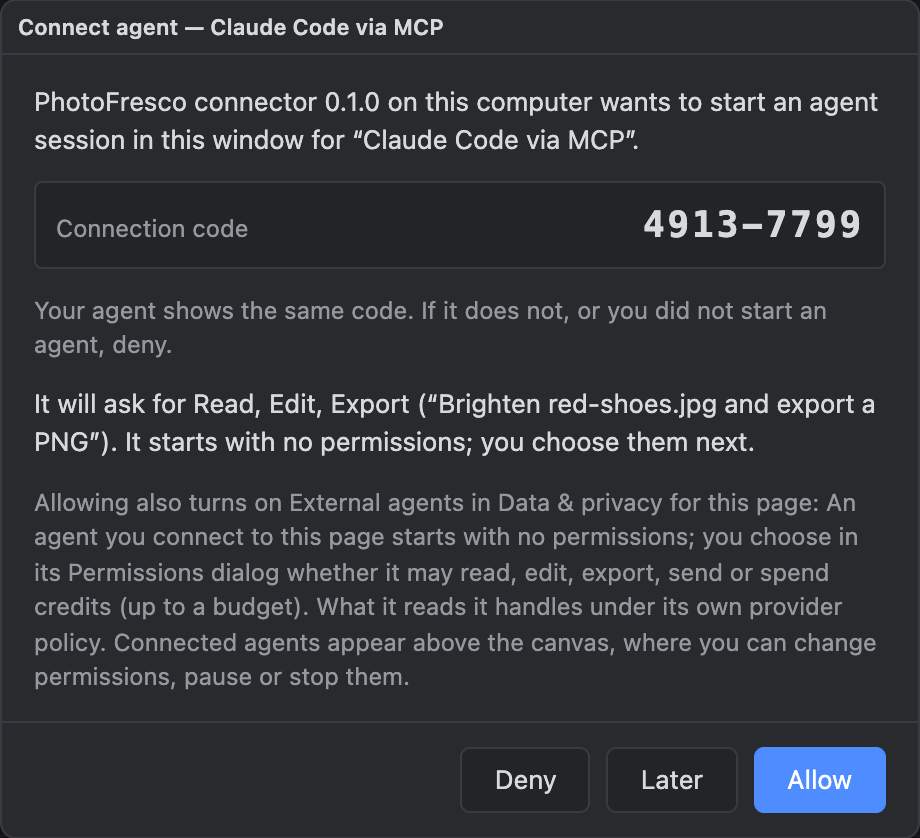
Later closes the dialog without answering. The request stays in the bar above the canvas with a Review… button until it expires after 3 minutes; after that, the agent has to connect again. Allowing also turns on External agents in Data & privacy for that window. If Use local-only is on, the dialog hides Allow until you turn local-only off.
Choose what the agent may do
A new session starts with no permissions. Right after you click Allow, the Agent permissions dialog opens with the permissions the agent asked for already checked. You can uncheck any of them before you click Allow, or click Deny to give none.
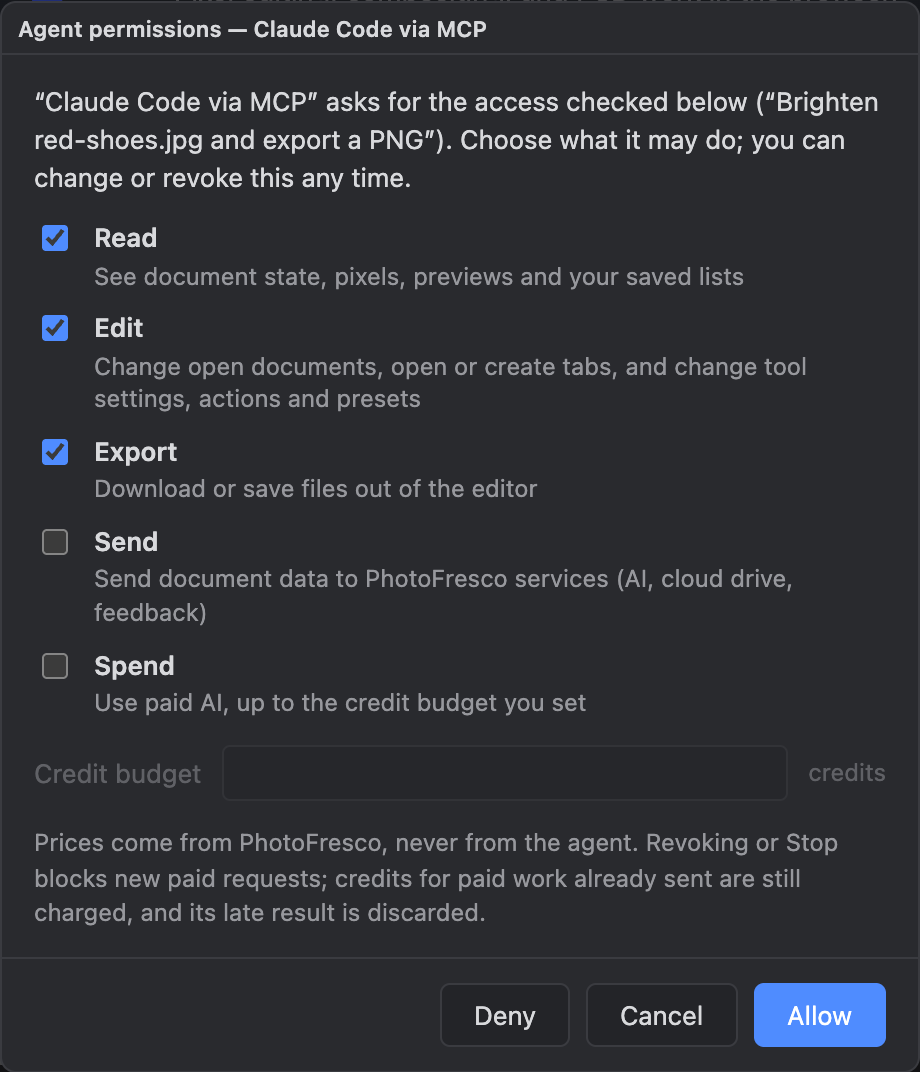
| Permission | Lets the agent |
|---|---|
| Read | See document state, pixels, previews and your saved lists |
| Edit | Change open documents, open or create tabs, and change tool settings, actions and presets |
| Export | Download or save files out of the editor |
| Send | Send document data to PhotoFresco services (AI, cloud drive, feedback) |
| Spend | Use paid AI, up to the credit budget you set |
An agent can only run an operation when you have granted every permission it needs. Paid AI, for example, needs Read, Edit, Send and Spend. To change permissions later, click Permissions in the agent bar, uncheck what you want to take away, and click Save. Unchecking a permission also stops any running request that uses it. If the agent asks for more, the bar shows what it wants and a Review… button, which opens the same dialog.
Spend and credit budgets
Paid AI features, such as generation, background removal and AI Layer Split, use your credits. An agent can use them only with Spend, and only up to the credit budget you type into the dialog. The agent can suggest a budget, but you set it.
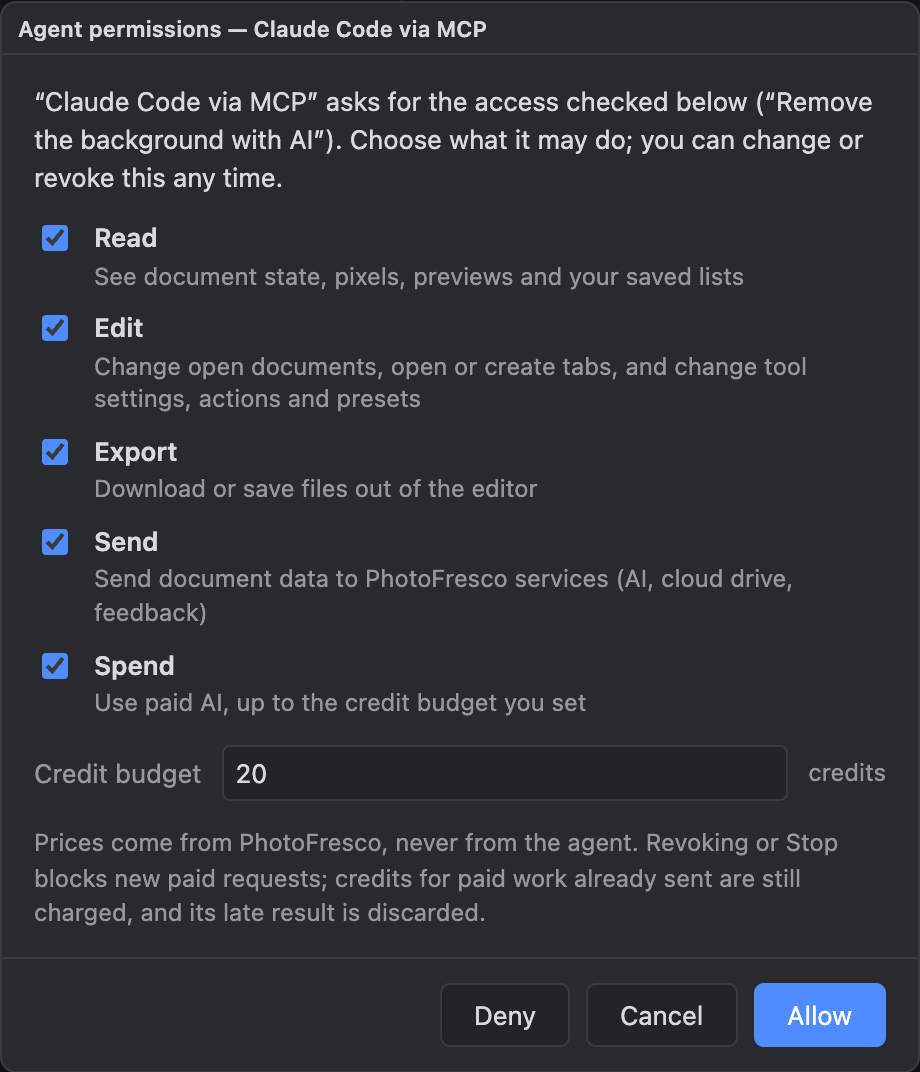
- Prices come from PhotoFresco, never from the agent. While Spend is granted, the agent bar shows the credits spent out of the budget.
- Before you can grant Spend, sign in to PhotoFresco in the agent's window. Its separate browser profile means it does not share a sign-in with your usual browser. If PhotoFresco can't set up the budget, nothing is granted.
- AI features also need AI tools allowed in Data & privacy in that window. A permission and a privacy setting are separate choices, and neither turns on the other.
- A budget lasts up to 12 hours. Unchecking Spend or clicking Stop blocks new paid requests right away. AI work that was already sent to the provider still finishes and is charged, but its result is thrown away and never added to your document.
The agent bar
While an agent is connected, a bar above the canvas shows its name and what it is doing. The tab it controls carries an Agent badge.

On the right of the bar are its permissions (with the credits spent out of the budget when Spend is granted) and the Permissions, Pause and Stop buttons:

| The bar says | Meaning |
|---|---|
| Connected to "name" | The agent is connected to this document and nothing is running |
| Working on "name" | A request is running now |
| Paused — you edited "name" | You edited the document, so the agent is paused until you press Resume |
| Paused — you're working on "name" | You started painting or editing on the canvas |
| Waiting — switch to "name" | The agent's document is not the active tab, so its requests are refused until you switch back |
| Disconnected — waiting to reconnect | The agent lost its connection; it has 5 minutes to reconnect |
Your edits come first. As soon as you change the agent's document yourself, the agent pauses. It can still look at the document but can't change it. Click Resume when you want it to continue. Pause pauses the agent without you having to edit anything. The agent works on its own document only while that document is the active tab.


Undo works as usual. Every change the agent makes is a normal step in the History panel, so Cmd+Z / Ctrl+Z undoes it.
Stop ends the session. Clicking Stop interrupts what is running, removes every permission and the credit budget, and keeps the agent from reconnecting. Edits it already made stay in History. To start again, the agent has to connect again and you have to click Allow again. Closing the agent's window or tab, reloading the page, or leaving the editor also ends the session.
Previews, files and exports
- Previews. With Read, the agent can request PNG previews of the whole document, a zoomed region, one layer's own pixels, or a layer mask or selection in grayscale, up to 2,048 px per side. These previews let the agent check its work. Everything the agent receives, previews included, goes to the agent's AI provider and is handled under that provider's policy.
- Opening files. The agent can open a file from your disk only inside a
--readfolder, at most 32 MiB, in PNG, JPEG, WebP, GIF, BMP, AVIF, PSD or PhotoFresco.pfdformat. The file then opens in a new tab. - Exports. With Read and Export, the agent can export PNG, layered PSD or
.pfdfiles, but only into a--writefolder or a new subfolder inside it. The connector writes a file only after its checksum (SHA-256) matches what the editor exported. It never replaces an existing file unless you passed--overwriteand the agent asked to overwrite. Paths outside your folders are refused.
Privacy: what is sent where
- Session recording is off in the agent's window. On a normal visit, PhotoFresco turns on session recording & diagnostics by default. The window the connector opens starts with everything off, so it sends PhotoFresco no recording, no diagnostics, no copies of the files the agent opens and no "How you found us" events. Allowing an agent turns on External agents only. You can turn recording on in that window's Data & privacy if you choose.
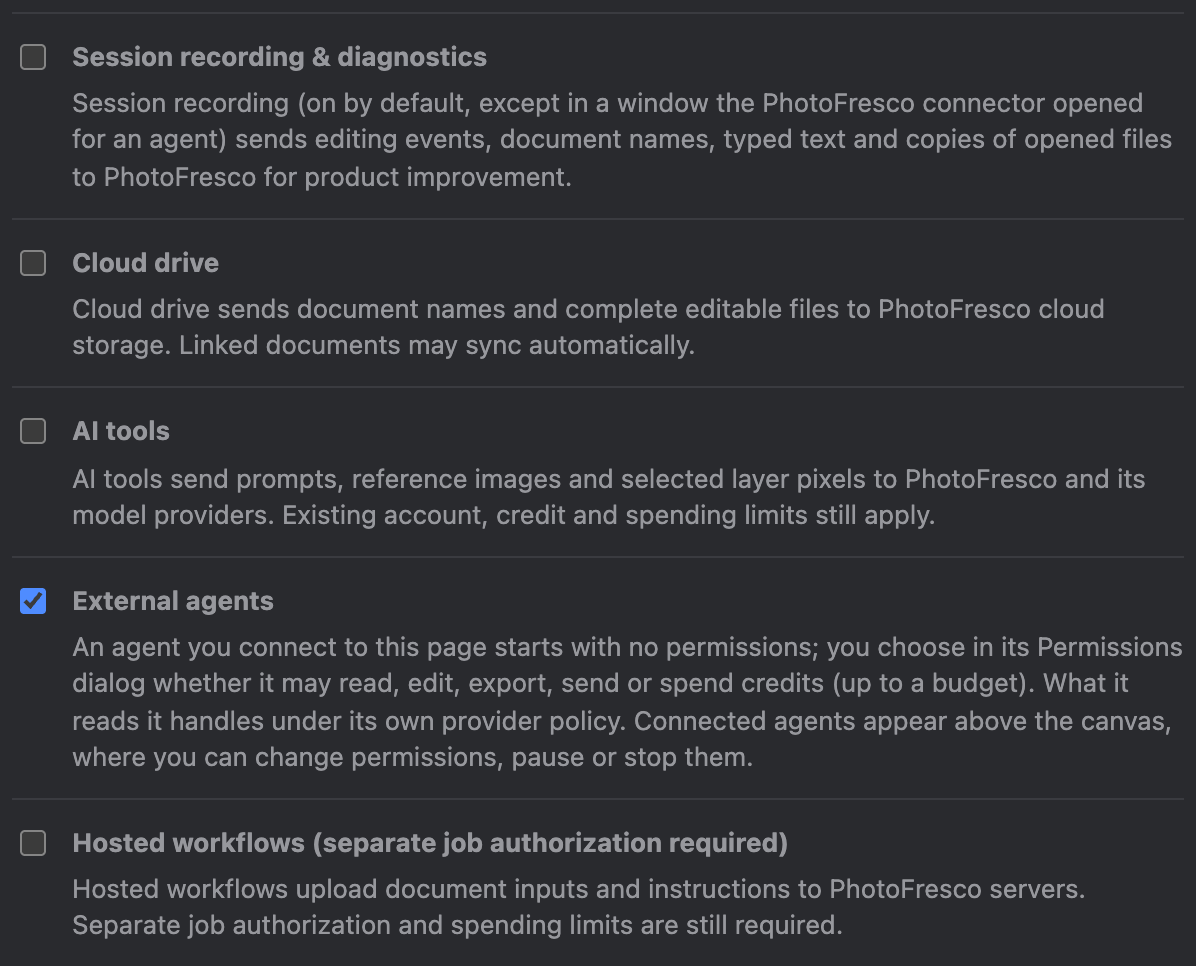
- The connector does not use the network itself. The browser it starts loads
https://photofresco.com/app/?pf_ref=mcp(orpf_ref=cli). Thepf_reftag only says how the window was opened. The browser is controlled through a private pipe, and nothing listens on a network port. - Local data. The browser profile, including any sign-in and editor autosave from that window, is stored in
~/Library/Application Support/PhotoFresco Connectoron macOS,%LOCALAPPDATA%\PhotoFresco Connectoron Windows, and~/.local/share/photofresco-connectoron Linux. - The agent gets only what you grant. Read gives it pixels and document details. Send lets it pass document data to PhotoFresco services, such as AI and cloud drive. Your agent's provider handles everything the agent receives.
The full list of what the connector runs, sends and fetches is in DISCLOSURE.md. For the editor itself, see Privacy.
Troubleshooting
| What you see | What to do |
|---|---|
| "No Google Chrome, Microsoft Edge or Chromium installation was found" | Install one of those browsers, or set PHOTOFRESCO_BROWSER to a Chromium-based browser's executable |
| The window opened but there is no Allow button | Use local-only is on in that window. Open Data & privacy, allow selected services instead, then click Review… in the agent bar |
| The agent says the connection request expired | You have 3 minutes to answer. Ask the agent to connect again and check the new code |
| The agent says it is paused | You edited its document. Click Resume in the agent bar |
| The agent says its document is not active | Switch back to the tab with the Agent badge |
| The agent says it lacks a permission | Click Review… or Permissions and grant what it needs, or tell it not to |
| Spend can't be granted | Sign in to PhotoFresco in the agent's window, then try again |
| The agent can't open or save files | Plugin installs have no folders. Use the clone setup with --read and --write, and keep files inside those folders |
| An open fails with "The image is … px" or "damaged or truncated" | The file is over a size limit or broken; see Opening files |
Uninstall
- Claude Code:
claude plugin uninstall photofresco@photofresco, orclaude mcp remove -s user photofrescofor a clone setup. - Codex:
codex plugin remove photofresco@photofresco. - Gemini CLI:
gemini extensions uninstall photofresco. - Skill:
npx skills remove photofresco.
Then delete the connector's data folder listed above, and the clone if you made one. Nothing else is installed: no services, login items or browser extensions.
Last updated