
Editing on your phone
Find tools, open Layers, use AI and save your work in PhotoFresco's phone layout.
Open a photo, pick a tool on the left, and keep your image in the middle. PhotoFresco's phone layout keeps panels and AI out of the way until you need them. It works in portrait and in landscape on touch phones.
Find your way around
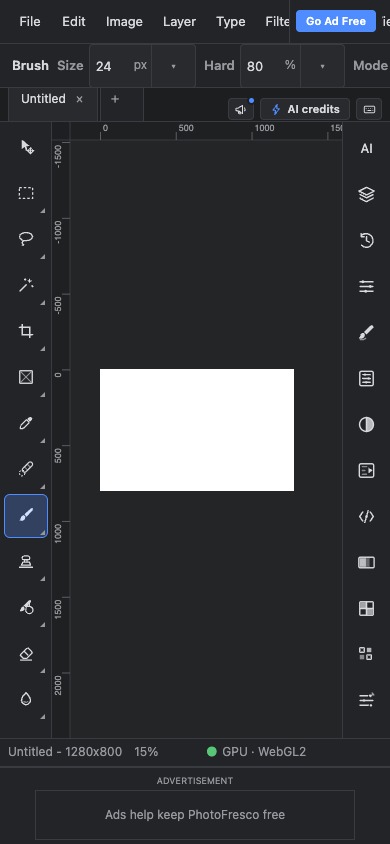
- Left edge: tools. Tap a tool to select it. Swipe up or down within the tool strip to reach more tools, including Brush, Eraser, Type, Hand and Zoom. Buttons with a corner triangle have more tools: press and hold to open their list.
- Top: menus and tool settings. Swipe the menu row sideways to reach File, Edit, View and Window. The settings row underneath changes with the selected tool; swipe that row sideways for additional settings.
- Right edge: panels. Tap Layers, History, Color or another panel icon. Swipe within this strip to reach the rest. One panel opens at a time, over the canvas.
- Bottom: status and advertising. Document information sits above a separate, labeled ad strip. The ad does not sit on top of the drawing area or tool buttons.
Open and close Layers
Tap the stacked-layers icon on the right, or choose Window ▸ Layers. You can select a layer, change its opacity, add a layer or hide one using the same controls as the desktop editor.
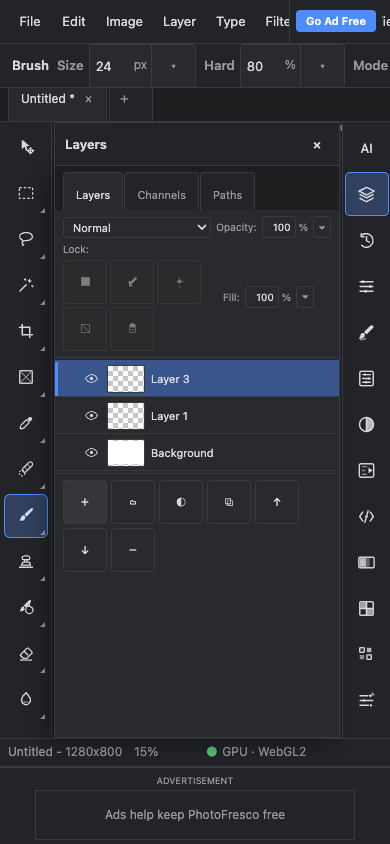
Tap × in the panel header, tap its right-edge icon again, or tap the exposed canvas to close it. The tap that dismisses a panel does not paint on the canvas. You can then continue editing with your current tool.
Panels have direct addresses, such as the Layers view. Back returns to the previous view; refreshing or opening that address restores the panel. These addresses select a view, not a shared copy of your document. Save your work separately.
Use AI when you need it
Tap AI at the top of the right-hand strip to open the prompt box. Type your prompt, pick a model and review its credit cost before generating. More options opens the additional generation controls.
Tap × in the AI header to hide the box and return to editing. Hiding it does not clear your prompt or cancel a running generation. The box starts closed on a normal phone visit; opening the AI view directly opens it. See AI generation & credits for models, references and costs.
Move around your image
Use two fingers on the canvas to pan and pinch to zoom. You can also select the Hand or Zoom tool in the left strip. To fit the document back into the available space, choose View ▸ Fit on Screen.
For a tool that needs Shift, Option, Command or Control, scroll to Modifier keys at the end of the right strip. Tap a key once to apply it to the next tool gesture; tap again to lock it on, and again to turn it off. Close the strip using its right-edge button when finished. A locked modifier stays active until you turn it off.
Open, undo and save
Use File ▸ Open to choose a photo or PSD from your phone's file picker. Session recording can upload opened images to help improve PhotoFresco; read Privacy.
Use Edit ▸ Undo to reverse an edit, or open History on the right to return to an earlier step. Use File ▸ Save As for a layered PSD, or File ▸ Export ▸ Export As for PNG, JPEG or WebP. Your browser controls where the download goes; check its downloads list or your phone's Files app.
About the mobile ad
The free phone layout reserves a small bottom strip for a 320 × 50 ad, plus its label and safe spacing. Availability depends on Google approval, ad supply, your advertising choices and blockers. When no ad is available, you may see PhotoFresco's own message there instead.
An active ad-free plan removes the ad strip and gives that space back to the editor. While the phone's on-screen keyboard reduces the visible window, the strip is hidden so it does not compete with text entry.
Last updated