
How to resize an image for the web or Instagram
Resize an image online in your browser — set exact pixel dimensions with Image Size, then export a web-ready JPEG, PNG or WebP with a live file-size preview.
PhotoFresco is a free online image resizer with on-device processing, exact pixel dimensions and a file-size preview before you save. Session recording can upload opened images to help improve PhotoFresco; see Privacy. The whole job takes under a minute.
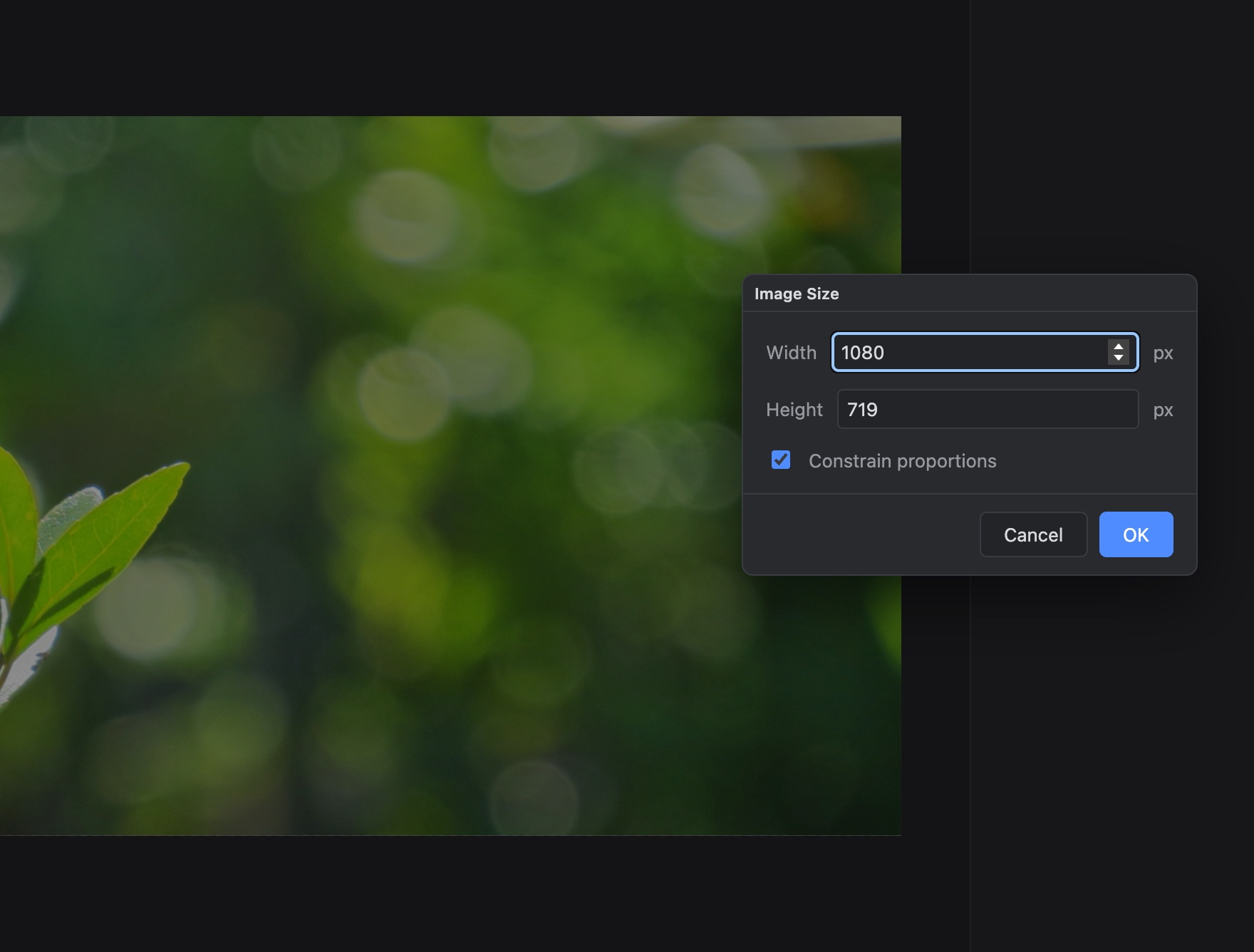
Resize an image in four steps
- Open your photo with
File ▸ Open…(⌘O / Ctrl+O), or start from the editor's start screen. - Choose
Image ▸ Image Size…from the menu bar. - Type your target Width or Height in pixels. With Constrain proportions checked, the other dimension follows automatically so the photo doesn't stretch. Click OK.
- Export with
File ▸ Export ▸ Export As…— pick a format, watch the size estimate update, and click Export to download the file.
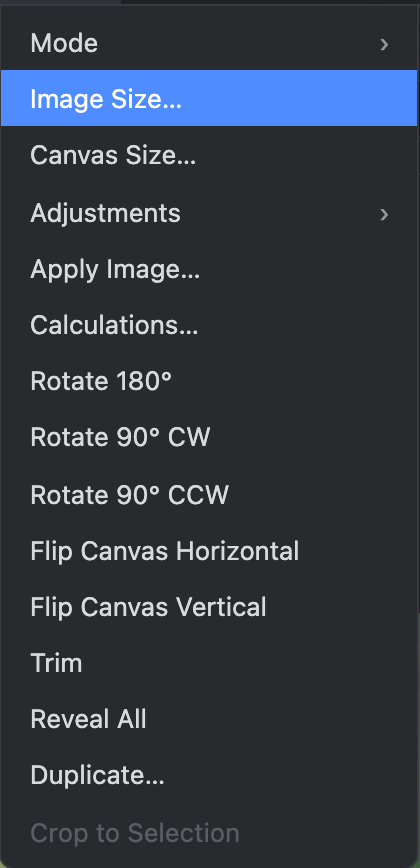
Resizing is an ordinary undoable edit — if you picked the wrong size, ⌘Z / Ctrl+Z puts it back.
Common sizes for the web and Instagram
| Use | Size (px) |
|---|---|
| Instagram square post | 1080 × 1080 |
| Instagram portrait post | 1080 × 1350 |
| Instagram landscape post | 1080 × 566 |
| Instagram story / reel | 1080 × 1920 |
| Full-width web hero | 1920 wide |
| Blog/article inline image | 1200–1600 wide |
Instagram stores feed images at 1080 pixels wide, so uploading larger than that only costs you upload time. Note that the Image Size dialog scales the whole picture; if you need a different shape (say, square from a landscape photo), crop first with the Crop tool (C), then resize.
Pick an export format
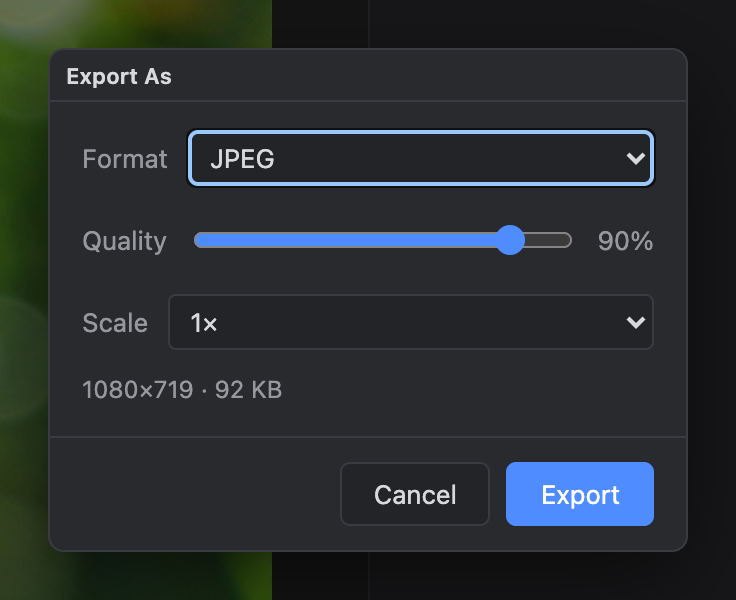
File ▸ Export ▸ Export As… offers three formats, with the output dimensions and an estimated file size updated live as you change settings:
- JPEG — the default for photos. The Quality slider trades file size against detail; 80–90% is hard to tell from the original at a fraction of the size.
- PNG — lossless, and the only one of the three that keeps transparency. Use it for graphics, screenshots and cut-outs; it makes much larger files for photos.
- WebP — smaller than JPEG at similar quality; supported by every modern browser.
The Scale menu (0.5× / 1× / 2×) applies a final multiplier at export time without touching your document — handy for saving a half-size preview next to the full-size original.
In a hurry? File ▸ Export ▸ Quick Export as PNG saves the document as a full-size PNG in one click.
Image Size vs. Canvas Size
Image ▸ Image Size… scales the picture itself. Image ▸ Canvas Size… changes the size of the working surface instead — the image keeps its pixels and is anchored to the side or corner you choose, with new space added (or content cropped away) around it. Use Canvas Size to add margins or extend a background, not to shrink a photo.
Last updated