
Actions & saved workflows
Record a sequence of edits in the Actions panel, play it back on another image, roll a run back, and save it as a portable workflow file that the command line and AI agents can run too.
An action is a recorded sequence of edits that you can play back on another image: brighten a product shot, add the same adjustment layers, resize for the web. The Actions panel records, plays and manages actions. Save as Workflow turns an action into a workflow file that you can keep, share, load again, or run from the command line or through an AI agent.
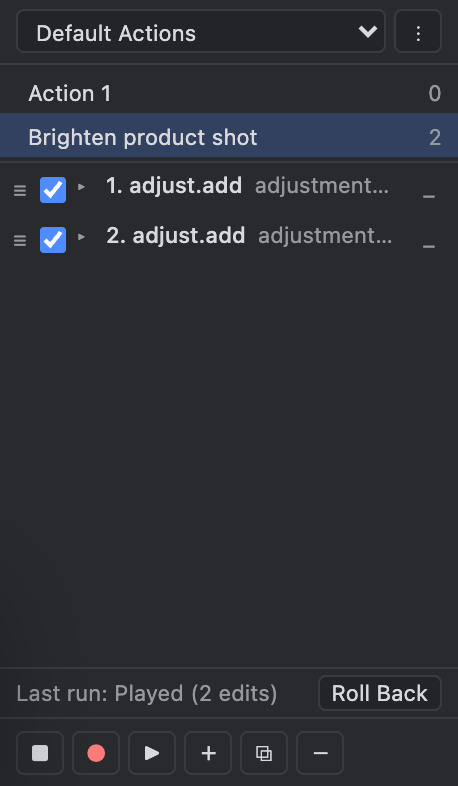
Record an action
- Open the panel with Window ▸ Actions. It is docked next to History by default.
- Click + (New action) and give the action a name, or select an existing action to add to it.
- Click ● (Record) and make your edits the usual way, with menus, tools and panels.
- Click ■ (Stop).
Each edit becomes a numbered step. Use a step's checkbox to include or skip it, click the step to see its exact settings, drag the ≡ grip to reorder, and click − to delete it. A step that has no scripted equivalent is marked not replayable. Play refuses the action until you uncheck or delete that step. Steps you undid while recording are kept for reference and skipped on Play.
Play it back
Select the action and click ▶ (Play). The steps run on the active document, and each one appears in History like any other edit.
Some steps can't be undone: exporting or downloading a file, uploading, paid AI, and opening or closing documents. The panel marks these steps, and Play asks first: "This action has steps that cannot be undone or rolled back… Run it?" If you choose Cancel, nothing runs.
Last run and Roll Back
After a run, the bottom of the panel reports Last run:
| Last run says | Meaning |
|---|---|
| Played (N edits) | Every step ran |
| Failed, stopped at step N | A step failed. The run stopped there, and the edits made before it stay in the document so you can inspect them |
| Canceled, stopped at step N | The run was interrupted, for example when an agent session was stopped |
| Refused before running | A check before the run found a problem, so nothing was applied |
| Rolled back | You rolled the run back |
Roll Back undoes only that run's own edits and restores your undo and redo history to how it was before the run. It works only for the most recent run, and only if nothing else has been edited, undone or redone since. Otherwise it refuses and changes nothing, and you can use History instead. Roll Back never undoes past a step that couldn't be undone, such as an export. Run records exist only in the open page: reloading clears them, and saving a document doesn't keep them.
Save and load workflows
Open the panel menu (⋮) next to the action-set picker:
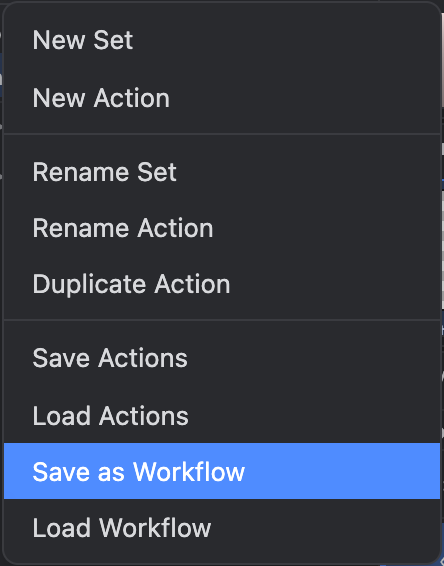
- Save as Workflow downloads the selected action as a workflow file named after it, for example
Brighten-product-shot.workflow.json. - Load Workflow reads a workflow file and adds it as a new action in the current set. If an action already has that name, the new one gets a number added.
- Save Actions saves all your action sets in one file (
photofresco-actions.json), and Load Actions replaces everything in the panel with the contents of such a file. Use them to back up and restore the panel. Use workflows to share a single recipe.
A workflow file is plain JSON ("format": "photofresco.workflow", version 1). It contains the steps and their settings, the canvas size it was recorded on, and which editor operations it needs. It does not contain your image. Layer references are rewritten so the workflow can run on another document: a layer an earlier step created, the bottom layer, or a layer with a unique name. Pixel positions are absolute, so a crop rectangle lands on the same pixels on an image of a different size. Before a run, PhotoFresco checks every step. If any step can't run, for example because the file comes from a newer version or refers to a layer the document doesn't have, the run is refused and nothing is applied.
Run workflows from the command line or an agent
The command line runs a workflow file on an image and exports the result in one command:
photofresco run Brighten-product-shot.workflow.json --open ~/Pictures/shoes.jpg \
  --export ~/Pictures/PhotoFresco/shoes-bright.png
An AI agent that has the Edit permission can run your saved actions and workflows the same way. A step that can't be undone runs only if the run request consents to that specific step (on the command line, --consent <step-id>), and only if the agent holds the permission the step needs, such as Export for an export or Spend for paid AI. --on-failure rollback rolls a failed run back instead of keeping the partial result.
Last updated