
Split an image into editable layers with AI
Turn one raster image layer into a grouped set of editable foreground and background layers with AI Layer Split.
AI Layer Split takes one image layer and separates it into a small stack of transparent RGBA layers. It is useful when you want to edit a subject and its scene independently without rebuilding the image by hand: move a subject, replace a background, apply an adjustment to only one part, or mask a returned layer more precisely.
The result is still a normal PhotoFresco document. AI proposes the separation; you keep full control of every returned layer.
Before you start
- Select a visible, unlocked raster layer in the Layers panel. It must contain pixels.
- Sign in and make sure you have at least 17 credits. AI Layer Split uses server GPU processing; the rest of PhotoFresco still runs locally in your browser.
- Keep the content bounds at 2,048 px or less on each side. Crop or downscale a larger layer first.
This operation sends the selected image to PhotoFresco and its AI provider. Session recording is separate and can upload opened images; see Privacy.
Split a layer
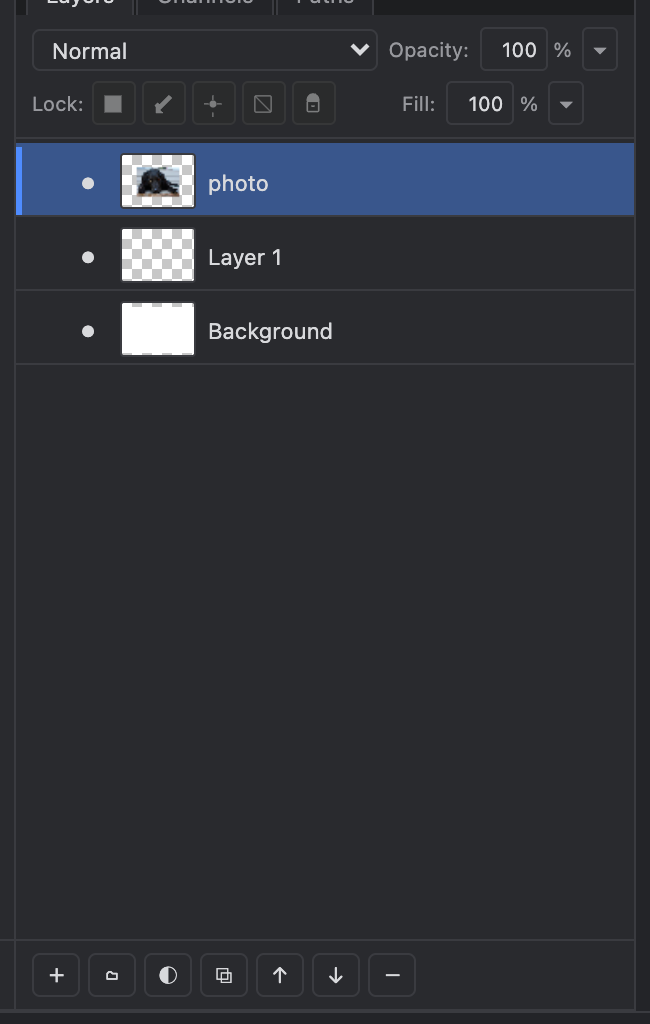
- In the Layers panel, right-click the image layer you want to separate.
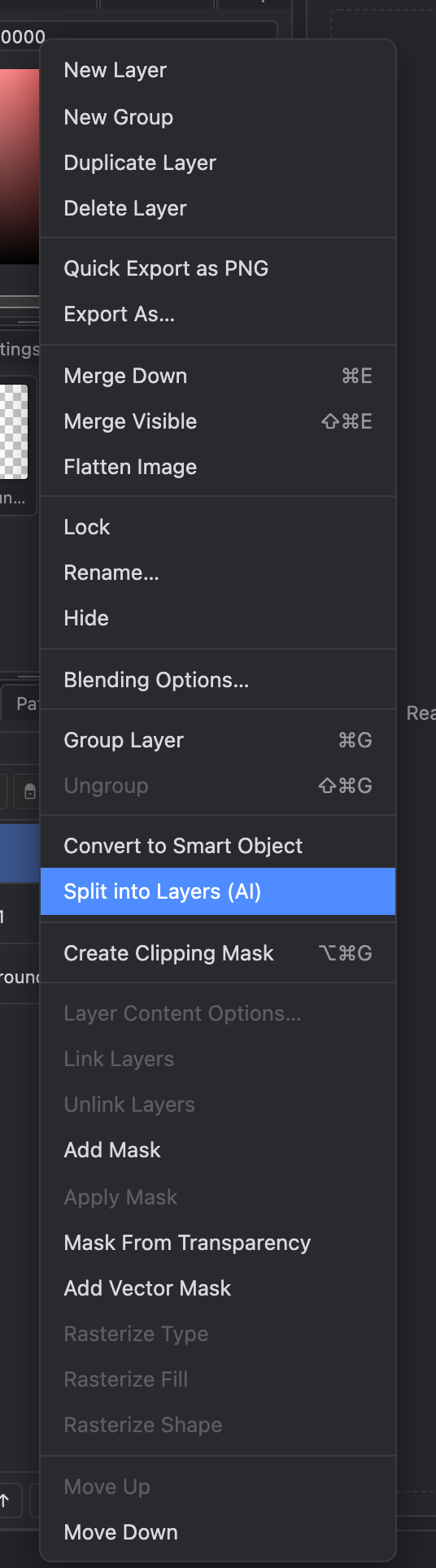
- Choose Split into Layers (AI). It sits beside Convert to Smart Object in the context menu.
- Wait for the decomposition to finish. Keep the document and selected layer unchanged while it runs.
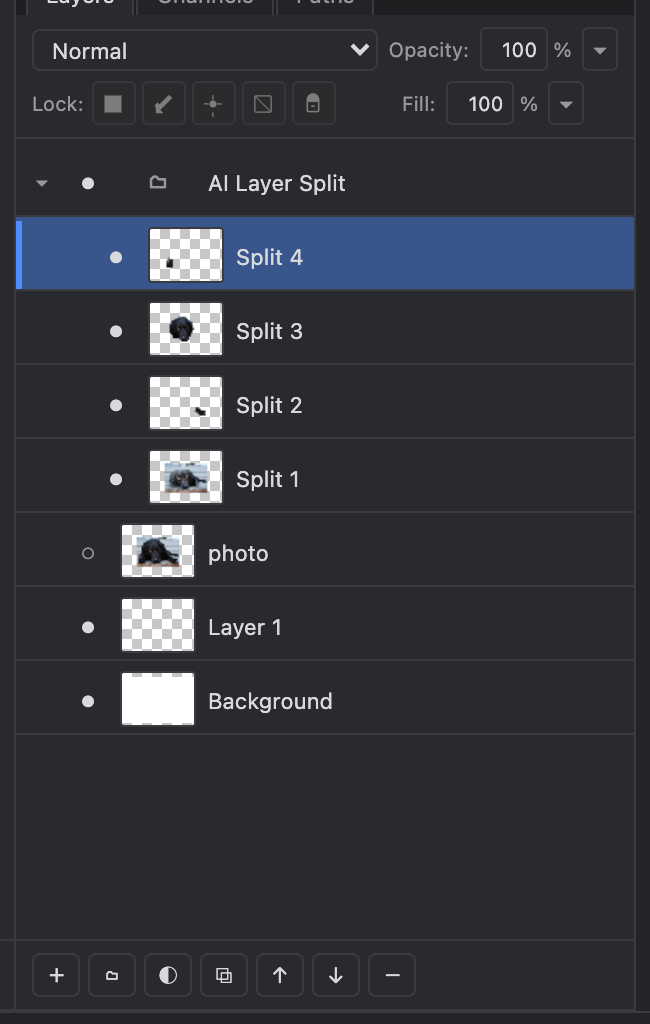
- Open the new AI Layer Split group above the original layer.
The source layer is hidden, not deleted. The group contains four editable layers by default, ordered so they recompose the returned image. You may see a background, a blurred scene layer, a subject cutout, or another sensible visual division depending on the image. Names such as Split 1 (768×512) mean the AI service returned that layer at a different working resolution; the layer is still anchored to the source image's position.
Edit the result
Treat the returned layers like any other raster layers:
- Select the subject layer and use Move, Free Transform, masks, or adjustment layers.
- Hide individual layers to inspect what each one contains.
- Put a new background below the group, or replace a returned background layer inside it.
- Use a layer mask to repair an edge instead of rerunning the entire split for a small mistake.
AI separation is not a promise that every pixel is perfect. Check hair, transparent objects, repeated patterns, text, and hard product edges at 100% before export.
Undo, redo, and recover
The complete operation is one History step: it creates the group, adds its returned layers, and hides the original source together. Press Cmd+Z / Ctrl+Z once to remove the group and show the source again. Shift+Cmd+Z / Ctrl+Shift+Z restores the exact returned group.
If the request fails before completion, PhotoFresco leaves your source layer alone and does not create a partial group.
How it relates to AI generation
AI generation creates a new image layer from a prompt. AI Layer Split starts with a layer you already have and turns it into more editable parts. Both are metered because they use server GPUs; see AI generation & credits for the broader credit model and current packs.
Last updated