
Tip - how to make a background transparent
Make the background of a picture transparent in your browser. Select a plain background with the Magic Wand, hide it with a layer mask and export a PNG. Free, no installation.
Say you have a picture of an object on a white background and you need it on a coloured poster. You need the white to be transparent. This works best when the background is plain and even, such as white paper or a clear wall. For busy backgrounds or hair, read the longer background-removal guide.
Four steps
- Open the picture in the editor with
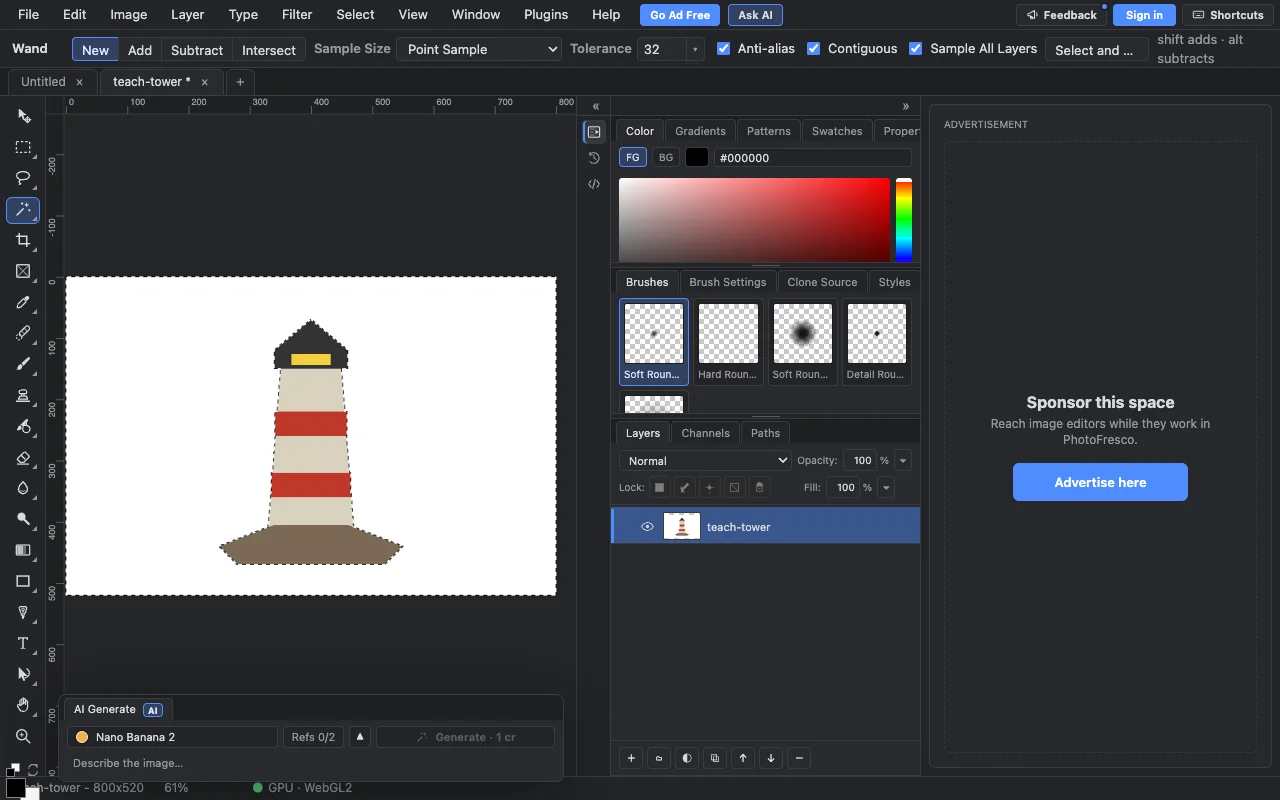
File ▸ Open…. - Choose the Magic Wand (W) and click the plain background. A moving dotted line shows what is selected. Then choose
Select ▸ Inverseso the object is selected instead.
- Choose
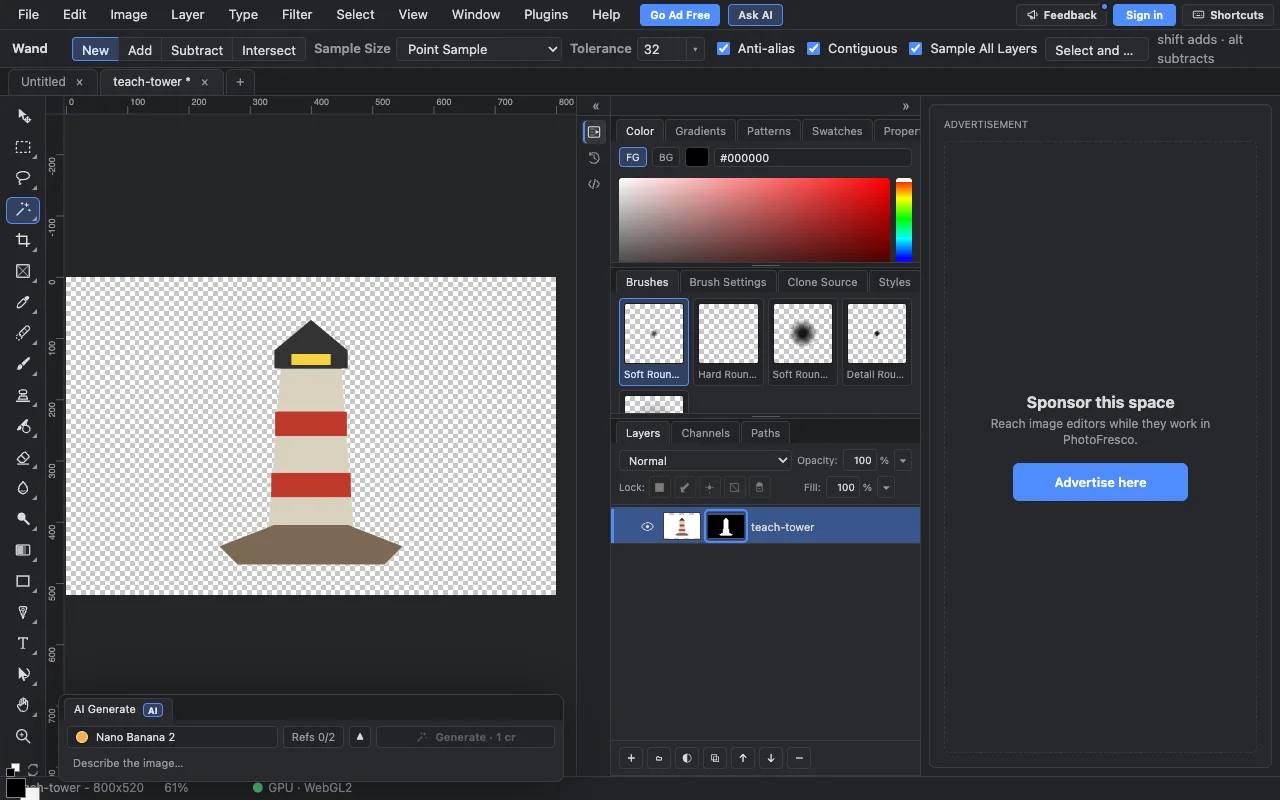
Layer ▸ Layer Mask ▸ Add, thenSelect ▸ Deselect. The checkerboard around the object means that area is transparent.
- Choose
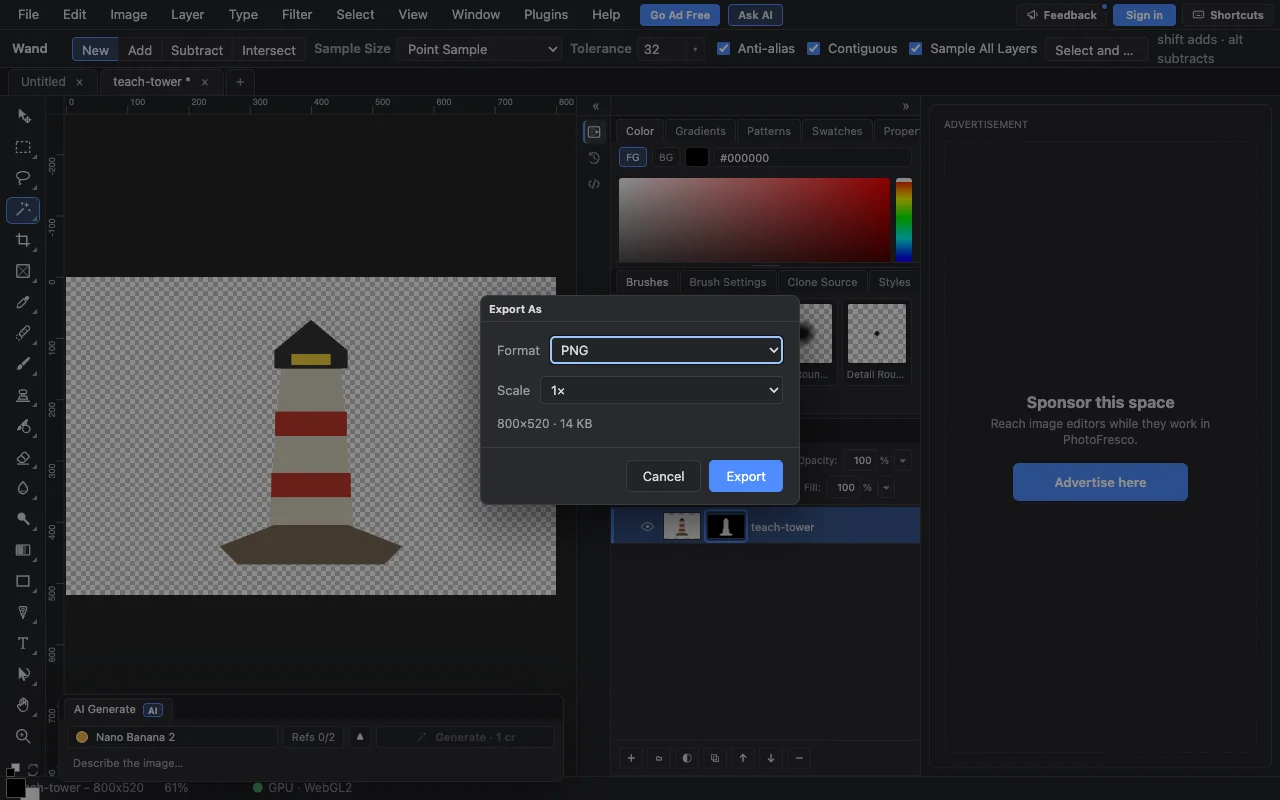
File ▸ Export ▸ Export As…, pick PNG and click Export. PNG keeps the transparency. JPEG fills transparent areas with a solid colour.
If the edge is not clean
- Lower the wand's Tolerance in the bar at the top and click again.
- Click the mask box in the Layers panel and paint black with a small brush to hide a leftover halo, or white to bring a piece back.
Next
Last updated