
Tip - open, edit and save a PSD in your browser
A short tip for opening a layered PSD file in your browser, hiding or changing a layer and saving a PSD again with the layers kept. Free, no installation.
Say someone sends you a layered PSD and you only want to move a title or hide a layer. You can do that in the browser, then save a PSD again. This tip shows the round trip. For what survives it in detail, see PSD import and export.
Open, change, save
- In the editor, choose
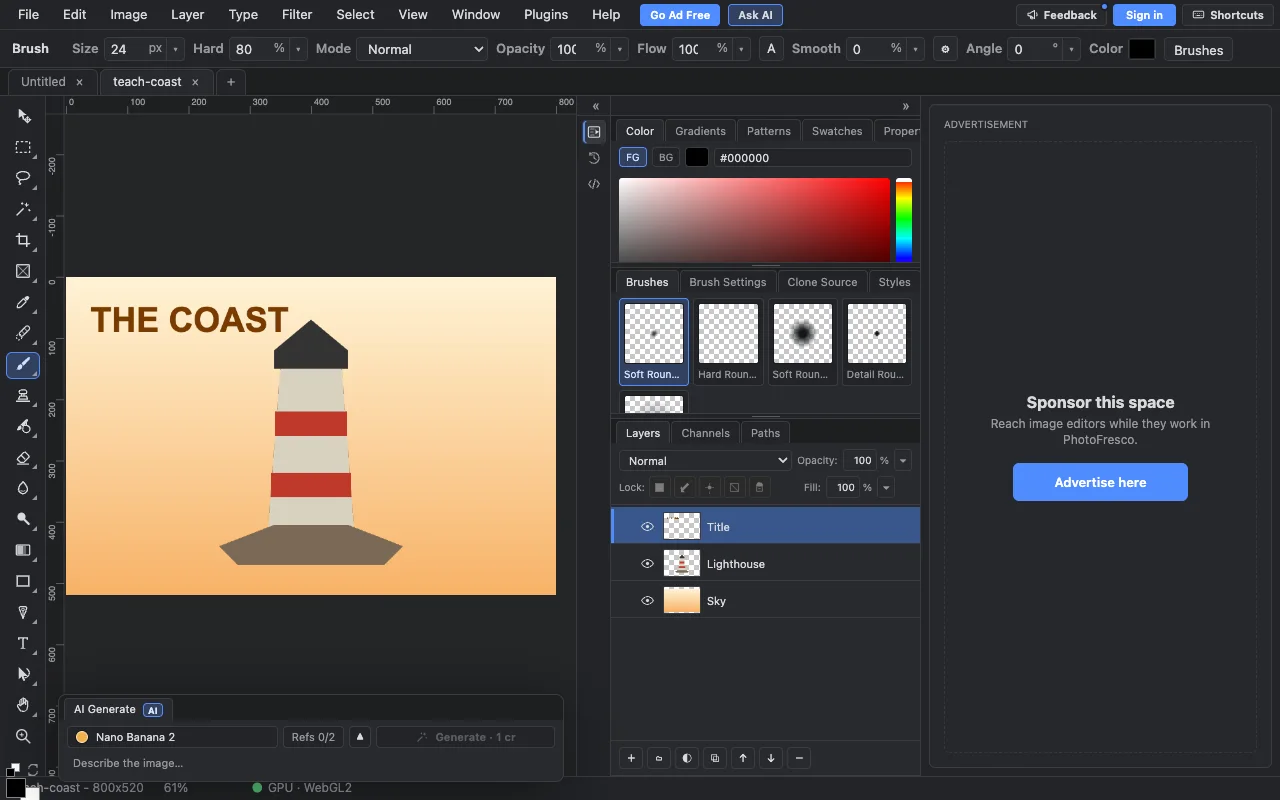
File ▸ Open…and pick your PSD. Every layer appears in the Layers panel. This example has three: Sky, Lighthouse and Title.
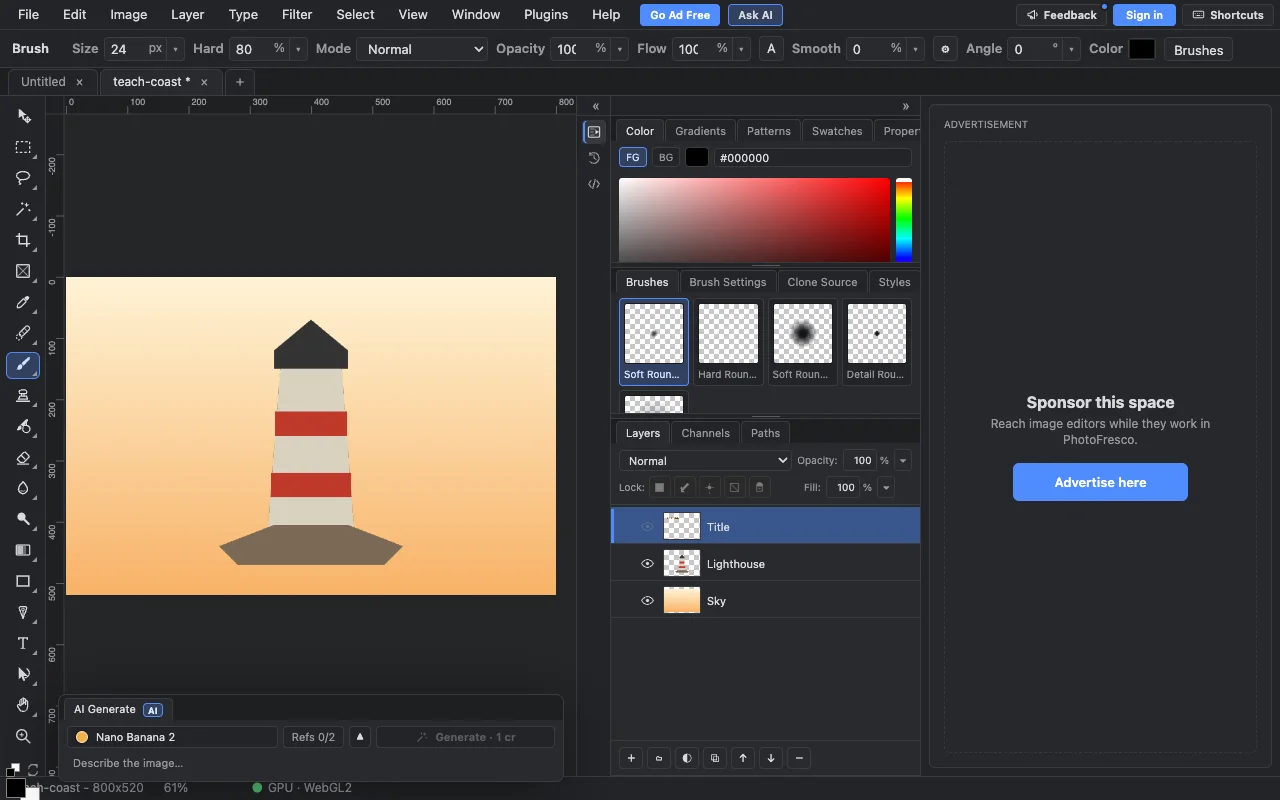
- Click the eye icon next to a layer to hide it. Here the Title is hidden and the picture shows without text. Click the eye again to show it.
- Make your change: paint, move a layer, or change text.
- Choose
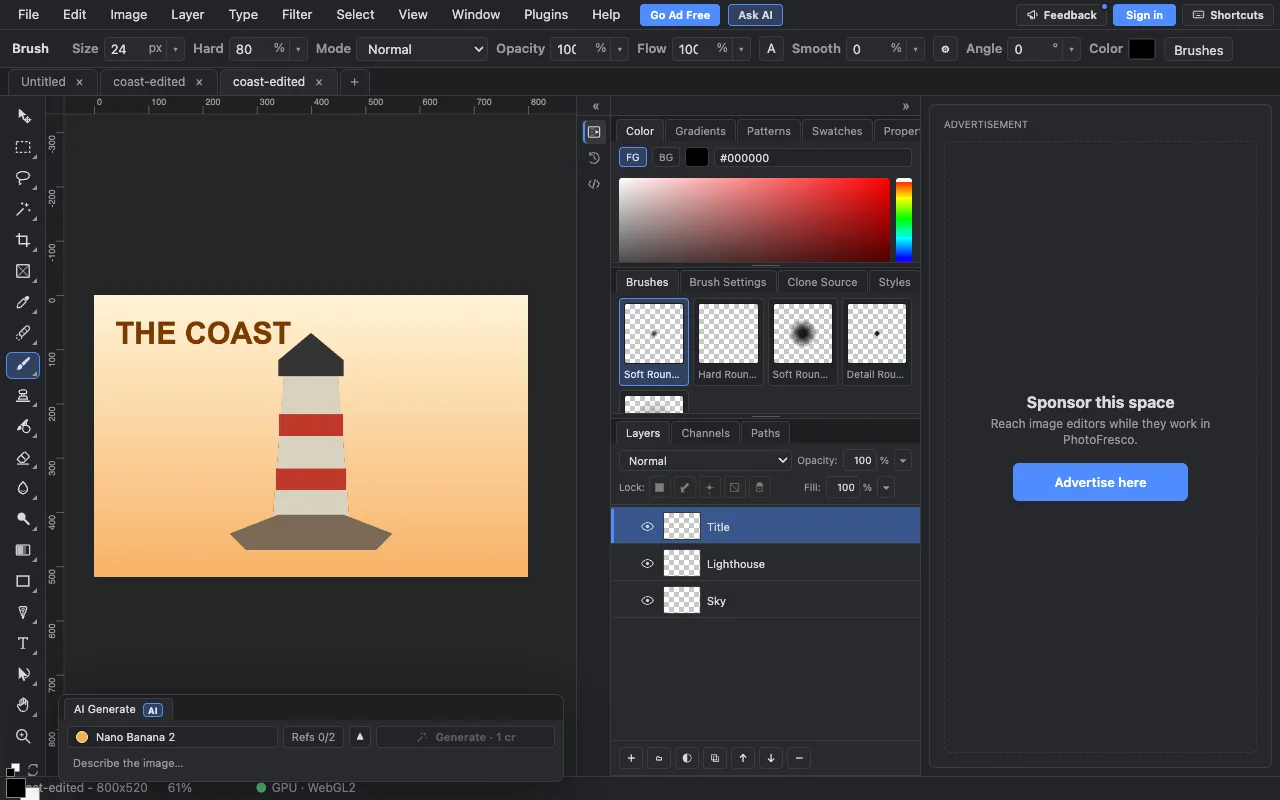
File ▸ Save As…and give the file a name. The editor saves a new PSD in your downloads. We reopened the saved file and its three layers were still there.
- For a flat copy to share, choose
File ▸ Export ▸ Export As…and pick PNG or JPEG.
Good to know
- Keep your original PSD. Some effects from other programs may look different after a round trip. PSD import and export lists what we know.
- Practice with our sample: teach-coast.psd, an original drawing with three layers.
Next
- PSD import and export: what survives the round trip
- Tip: what layers are
- Getting started
Last updated